Showing posts with label Free Web Hosting in your Home. Show all posts

Saturday, 22 December 2012

Web Hosting at Your Home (Revisited)

(For the latest PDF files Merger Software please have a look at the top of the left margin, inside the red box.) From the time that I wrote the post on this topics, many things has changed. Now, I revise the material.

First, you need a dedicated computer to install and run your webserver on that. I used to use an old laptop; it was older than ten years. Regretfully it made a lot of noise during the night cooling the CPU. CPU was 2 GHz, but with small CPU cache it was killing slow. It still had some customers to earn some cash, so went on auction site and "bid" farewell. As I have a very cheap and high quality paid hosting, I didn't bother to replace the home web hosting laptop. I put the home hosting on my computer, hence when I hibernate the computer or shut it down it is not visible anymore.
  • Therefore, if you want to use an old laptop as a server consider how far it is still useful. You frequently have to work with it and if it is too slow, it can make you impatient. It is difficult to upgrade its CPU and impossible to improve its cooling mechanism. It also consume some electricity and it creates some noise.
  • If you decide to use an old desktop (tower) computer, you easily can upgrade it to a more powerful one. You also can get almost good computers with very low prices on auction sites. They consume more electricity and for tuning you need to connect keyboard, mouse and screen to them. Their noise also might be too much.
  • Considering expenses all together a web hosting at home might not be profitable comparing to a purchased web hosting mostly under $40, $50 a year. But it is rewarding in terms of having a hobby. If you have a small business and hoping to develop it or it is growing it is a good practice to keep your IT operation under your control and within the horizon of your understanding; then web hosting at home could be a good exercise to that ends.
  • Call the computer of your home web-hosting your "web server" after this.
Second, download and install Apache HTTP (web) server to your home web server. To do that
  • Create a folder in the root directory of your web server as C:/Apache Software Foundation/Apachex.x where x.x stands for the version of downloaded software. Mine is Apache2.2. 
  • Install Apache server and during the installation instruct Apache to be installed in that C:/Apache Software Foundation/Apachex.x folder.
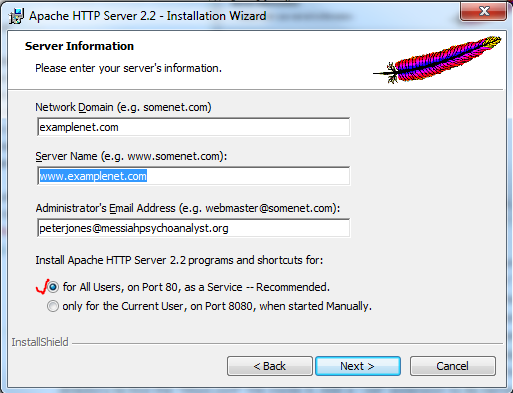
  • Fill in the installation form of Apache. You can fill its field with anything that looks like a website name and email. Later you can correct them in conf/httpd.conf file.
  • Open htdocs folder inside Apache2.2 and double click on index.html if it opens and shows "It Works!" then you have been successful so far.
  • If succeeded change name of index.html to indexold.html.
Now it is time to bring your website into your home web hosting.
  • From wherever you have saved your website copy all the files and folders and paste them inside the htdocs folder of your Apache.
  • You have a front or home page. It could be home.html, index.html, or default.html. Extensions could be html or aspx or other accepted extensions. Make a copy of that and change its name to index.html. Having done this you do not need to tweak with conf/httpd.conf file for now; until later that you become an advanced user.
Log into your router, normally by typing 192.168.0.1 (or in some routers 192.168.1.1) in your browser.
  • Find the IP address of the web hosting server computer of yours from the "Connected Devices" section. It should be something like 192.168.0.7
 While still  logged in the router note that in all routers there is an "Advanced Settings" and inside that a section for "Security" settings. Among the "Security" settings you'll find a "Port Forwarding" area. Enter in "Port Forwarding."
  • Select HTTP for name of the "Service."
  • Select TCP for "Protocol."
  • Enter IP of your web server computer into the IP field (192.168.0.7).
If you are in Windows XP this is fine enough. If you are in Vista/ Windows 7 or Windows 8, you need to instruct the Windows to make an exception in the Firewall to allow inbound traffics for your web server.
  • Open "Control Panel" and then open "System and Security."
  • Click on Windows Firewall to open its dialogue.
  • On the left side list find "Advanced Setting" and click on it.
  • A "Windows Firewall with Advanced Security" dialogue will open.
  • On the left side list click on "inbound rules."
  • Now on the right side list click at the top on the "new rule."
  • Among the selection radio buttons click on "Port" and the next.
  • In the next dialogue click on "TCP" radio button and then specify on the "Specific Local Ports" by typing value 80 in the field and then next.
  • In the next dialogue leave "Allow Connection" as it is selected by default. Click next.
  • Well your web serving computer is in your home. Hence in the next dialogue you need to select "Private" network by ticking the box. Click on next.
  • In the next dialogue select a "Name" for your rule such as "My Apache Web Hosting." Click "Finish" and you are done.
After setting up the new "Firewall Rule" type http://localhost/ in your browser. That should bring your home page. Look at your browser it is just http://localhost/  with no index.html or anything after that. This is a good lesson for later tunings. Now click on your "Home" link (you have that link somewhere in your front page), then browser changes to http://localhost/home.html or http://localhost/default.aspx or whatever file you have as your home page. I decided to have mine as default.html since I found it more comfortable to work. I have three similar copies of my home page as index.html, default.html and home.html inside the htdocs folder of my Apache.

You have your web server hosting at home up and running.
  • Get your main internet service IP from your router or by typing "my ip" in your favourite search engine. It should be something like 87.321.46.18 (this is not a real IP as one of the numbers is greater than 255 which is impossible).
  • Ask a friend to type that IP in their browser. Check if your web hosting is visible for them.
Hopefully you have done all you need at home for your web hosting. It is disappointing that it is visible only for your acquaintances. Next make it visible for the world.
  • One solution is to get a free subdomain from numerous provider. They do it in a hope that one day you are going to get one of their paid services. Once they get enough clients, gradually they kick out free nerds with excuses. One I am using is DNSdynamic. They provide you with a free client to be installed on your computer. You do not need this client in principle. I'll explain for you in a minute. Sign up to their site and select a name for your site, say homelyhost, then your address will be, say, homelyhost.dnsd.info. There are other options besides dnsd.info. Mine is messiah.dnsd.info. These types of names does not look much exciting.
  • While logged in the DNSdynamic website, or wherever, use their provided instructions and point the name (say, homelyhost.dnsd.info) to your IP (87.321.46.18).
  • Log out and test the name in your browser. Sometimes it take 24 hours that things become sorted out throughout the worldwide network of Internet.
Reason for installing the client is that normally people have dynamic IP which is subject to unnoticed arbitrary change by their Internet Service Provider (ISP). You do not need the client as much since due to technical issues IP addresses will be kept static and without change for a long time and years if you do not move from your present address or you do not change the Service Provider.
  • You can check your IP every now and then, perhaps on a daily basis, and if it had been changed log into your member page at DNSdynamic site and point the name to new IP.
  • Alternatively you can buy a static IP.
(Update 26/April/2014: As explained here and I expected DynDns that I already had, has informed me that they can't continue providing free services anymore. Their offered prices are so unreasonable as if they are living in another planet. I moved to DNSdynamic.org, and edited this blog post, accordingly. They look very innocent now.)
You might like to buy a name for your web site that you are hosting at home. You have not much options now a days for selecting cool and conspicuous names. They are already gone or big companies have bought them, in speculation, to sell them to wealthy people, celebrities and companies who need such names. Even misspelled names are sold already for famous brands. If you type in browser say foerd.com you might get to ford.com, for instance.  They also may use it for "parking" sites. If you browse by misspelling ford as foerd you reach to a site that has parked advertisements for car selling/repair/used-car companies and during the year might bring few hundred dollars for its owner.
If you need very ordinary name, especially long names, these names are sold on a yearly subscription basis and are not expensive. They are from $5 to maximum $25 per year. I bought a dysprosiumsoft.com for $8 a year.
I pointed it to my webhosting at my home, but how. Sites such as DynDns asks paid subscription to provide such a pointing service which is called DNS or Domain Name Services.
  • You need to use a free DNS provider.
  • There are many of them out there with the same rule: when they get enough people convinced to upgrade to paid service they kick out the remaining die-hard non-paying nerds.
  • I found freedns.afraid.org more nerd oriented than others and very easy to configure (© 2001-2014 Joshua Anderson, Free DNS is currently processing 4,373 DNS queries per second).
  • I signed up to their free subscription and followed their instructions to point their DNS to dysprosiumsoft.com and then dysprosiumsoft.com points to my IP. Click on http://dysprosiumsoft.com and if my computer is on (mostly GMT : 8 am to midnight) you will see my web hosted on my own computer. It is also the same pointed by http://messiah1.ddns.net/. They both land on the same folder. I have one folder for home web hosting but I have pointed two names to it; similar to foerd.com and ford.com that points to the same site such that if people make a mistake while typing in browsers they land on the same place. I have added a small tag at the top (Home Web Hosting Demo) to be recognised from the out-sourced professionally hosted http://messiahpsychoanalyst.org.
  • Click on the W3C validation at bottom. It becomes validated similarly.
Believe it; it needs some patience.

(Disclaim : names I used in this note are those I am using I have no idea regarding recommending or endorsing them. Though I am thankful to them but you might prefer using your favourite search engine finding similar services)

Please also see a newer post Web Hosting at Your Home : PHP and Port Forwarding Conflicts

Sunday, 7 August 2011

How to Create a Free Web Hosting in Your Home? (2)

(For the latest PDF files Merger Software please have a look at the top of the left margin, inside the red box.) Next you need to test your IP address on the Internet. (Please also read the previous post.)This is different with your private hub IP addresses. It is the unique address given by your broadband service provider to the location of your router on the entire Internet.You can get it on different places.
For example, log into your router and click on "Basic Setup" you find it as

It is something like "98.227.112.49" This number is as good and working as any important site such as www.un.org or other sites. Ask a friend to type that IP address in their browser and voila! He will be directed to your hand-made web site. Remember from the previous post that if your default home page is not "index.htm" you have to configure "httpd.conf" file accordingly, or type "http://98.227.112.49/home.html". You have a web hosting of your own free. This IP address is subject to arbitrary change by the provider. It is dynamic for ease of maintenance. People join to and opt out from a provider and their address will be given to others. You also may change the provider or your residential. It also cannot be remembered easily. It needs a mnemonic to help to memorise. There are companies on the Internet that provide you with a free client software for maintaining a constant connection of the Internet with your potentially changable IP through a mnemonic of your choice. These companies are called "Dynamic DNS Provider" or such. You can use your favourit search engine to find one. By client I mean the old PC that is being used for your in-the-home web hosting. It is necessary that you subscribe to such a free service. Then download and install the client software on the "client" following their simple instructions. This mnemonic is not a top level domain such as www.anexample.org. It is a subdomain such as "subexample.anexample.org" Mine is messiah.dyndns.inf. I got dyndns.inf from free DynDns' many available options. I mention their name as a gratitude to the free service. If you like to have a top domain name, then you have to buy one by paying £5 ($8) (at the time of writing this article) a year. Many of more attracting names are being used by others or are bought to be kept to sell for higher prices. After purchasing that domain name or if you already have one, then you can redirect your top domain name through that dynamic IP provider to your home made web site.  dynamic IP provider tells you how you should do that. (freedns.afraid.org starts by default from a top domain name of yours. Their dynamic DNS service is also free. With £5 ($8) a year (at the time of writing this article) you buy a domain name from any seller and then redirect it through dynamic dns and nameservers of freedns.afraid.org to your home web server.) You should follow guidelines to maintain your down-time to minimum per year. It is easy to surpass in quality over an expensive web hosting if you minimise load of that web server machine. Do not use it for other purposes and do not put more than the minimum of operating system software on it. Uninstall additional software (sometimes called bloat-ware) that comes with an operating system and has not any use for your web server. It is possible to gain an old PC with an OEM Windows XP installed under £20 ($30) or sometimes drastically less than that on the eBay now a days. You can upgrade it to a 3GHz CPU, 3GB RAM. The bad thing about a desktop PC is its electricity consumption and noise that it creates. Bad thing about old laptops is that you cannot upgrade its cpu easily and old laptops normally cannot accept  more than 1GB of RAM. By the end of 2012 Britain will be the first country that all its communication network will be on the Internet. There will remain no conventional telephon switching after that. Thanks to optical fiber on your door, speed of connections are not subject to trafic load and distance and is constant all around the clock. Hosting at home is the next asset that you can have besides being just consumers of  the other web sites. At the end this is very pleasing job to accomplish. It is fulfilling like ham radio and DXing, when you were producer of your own equipments instead of buying them. After preliminary set up of the site, there'll be many Elmer's notebooks on the Internet that paves the way towards full professionalism. For example, click on this link, http://messiah.dyndns.info/CodesForUs.html. You can find that I have moved part of this blog on into that web site at my home. (Thanks to Grant Hardy who edited this post from the US)
(Update : See also this post Web Hosting at Your Home (Revisited) )
Update, 25 March 2014 : You might find these two wikis useful, too.
They include images and are step-by-step.

Moving from Microsoft Office Live Web Hosting (3): How to Create a Free Web Hosting in Your Home (1)?

(For the latest PDF files Merger Software please have a look at the top of the left margin, inside the red box.) If you are on a broadband and have an old computer or laptop and have a taste of hobbyist tinkerers jobs, you might be eager to become your own host for your website. (This is a continuation of two previous posts in moving from OL.) That could become more powerful than a purchased hosting. You need to download the Apache http Server which is a free software (GPL compatible) for serving your website to public. Install Apache server on your old PC. Well, my platform is a Windows XP Professional SP3. I have not tested that on a Unix yet. I'll do it and update this blog. I double click on downloaded software (it is Microsoft Installer file format, .msi). After some routine procedures, this dialogue asks me for some information.

Information I put could be arbitrary. Later, I can configure them if I like. Next I select a custom install.

I have an Apache home directory already in my computer as "C:\JavaHome\ Apache Software Foundation" inside my Java home directory. I change the default of http server to this directory, as "C:\JavaHome\ Apache Software Foundation\Apache2.2"

Yours also could be any directory of your choice. After finishing installation, an "Apache Server Icon" appears on the quick launch tray of your desktop. Inside the Apache2.2 folder there are other folders. Please open "htdocs" folder and double click "index.html" it opens in your default browser showing "It works!" as the sign of success in correct installation of Apache http server. Next to "htdocs" you may notice the "conf" folder. Please open the directory to find the "httpd.conf" file inside it. Add a ".txt" extension to its name (i.e., httpd.conf.txt) to be able to edit the file in a notepad. (Frequently I open many of such files in NetBeans IDE). Find this line inside the document (it is line 179):


You have to change the "DocumentRoot" to your desired directory. I have created a "C:\Web\MyWeb" directory on my old laptop. Hence, I change to:

Please not I made the original one commented out by putting  pound (#) in front of the line, and added my own home server directory in its place. I immediately make "C:\Web" directory shared in my Windows "WorkGroup" such that I can work on it from my desktop PC. In this way I never have to go physically to that laptop anymore. This sharing is only on your own Work Group and is nothing to do with public network. Please go further down in the Config file to get to:

Change it as to your newly created root directory of yours,


Now save and close this file and remove the ".txt" extension from its tail back to its original "httpd.conf" Left click on the "Apache http server icon" on your desktop tray and then click on "Restart" on the drop down menu choices. tool tip text shows "All Apache Services Running" Now start to create your web site. Open "C:\Web\MyWeb" directory and on a note pad create any simple html. Then "save as" it as a index.html, or default.html, or home.html. I am running everything from default.htm as I have transported my web site from Microsoft Office Live (OL) and like to minimize my workload during the transition. I have created all three with similar content. That makes it more transportable. But, please note that "httpd.conf" file has a default of its own as the "index.html" that serves on connection. You know that when you type "http://www.anexample.org" in your browser. It brings a default page such as " http://www.anexample.org/homepage.html. " This can be determined in the "httpd.conf" file as we can see,

You can change it to home.html or default.html or comment it out by putting a pound (#) sign in front of  the line 242. If you do not create an "index.html" page as your default home page, the www.anexample.org opens a page with a folder/file tree of your websites including everything you have in the "root directory" you created above. To check that I delete my index.htm page. I have three links here for the test: http://messiah.dyndns.info/ and http://messiah.dyndns.info/Home.html and http://messiah.dyndns.info/Default.html (These as I said could be slow or down due to I turning off the old top.) Later, I explain where "dyndns" comes from.
In the  same directory I create four folders as, "documents" and "images" and "cgi-bin" and finally one I need as "PDFs" One might like to have other folders such as "downloads" or "stylesheets" or"JSes" and so on. In contrast to that, I put my css files naked next to index.html, also if any js file. I have none of this type yet. Next I should open the firewall to allow access of the Internet into that server. I log into my router. (I can log from any computer on my hub.) I click on "Port Forwarding Option/Port Triggering" in my NetGear router it is like this:


Your port forwarding could be blank, so you need to "Add Custom Service." Fill the necessary fields, as described. "Server IP Address" is the fixed IP address given by the hub of your broadband router to the old computer that you are using for your home web server. You can find it by clicking on "LAN Setup" on the left hand pane of the router. I found it as "192.168.1.7" for me. It almost always starts with "192.168.0" for all connected device. Mine starts with "192.168.1" for all device.  After configuring the "Port" please type http://localhost/ in your browser (local host is the loopback to your web server) or if you have a "home.html" type http://localhost/home.html in your browser that takes you to the home page of your "Home Made" website. Next, "How your site becomes visible on the Internet?"
(Update : See also this post Web Hosting at Your Home (Revisited) )